
Working with Workflows
A workflow is a type of entry point that applies validation rules to all flows within it. These rules help ensure flows are compatible with the Agentic API and can be reliably interpreted by AI agents.
Workflow validation helps identify issues early, highlights non-compliant flows, and supports the creation and maintenance of AI-ready workflows. Validation is based on a defined set of workflow validation rules.
Creating a workflow
When creating a new entry point, select the mode that best fits your use case:
- Freeform: Allows full flexibility when creating and maintaining flows.
- Workflow: Applies validation to all flows within the entry point to help ensure they are Agentic API-ready and comply with Procedureflow's workflow validation rules.
To create a workflow, follow the instructions in Creating a Workflow Entry Point.
Identifying workflows
Workflow entry points and their associated flows are identified by a Workflow label throughout Procedureflow. This label indicates that the content is subject to workflow validation and is designed for Agentic API compatibility.
You can find the Workflow label in the following locations:
- Entry Points page
- Flow Editor
- Administration > Entry Points
- AI Process Designer generation screen
The label makes it easy to distinguish Workflow content from Freeform content at a glance.

Creating flows within a workflow
Flows created within a workflow are automatically validated against Procedureflow's workflow validation rules to help ensure they are compatible with the Agentic API.
To manually create a flow within a workflow
When creating or editing a flow within a workflow:
- Open a workflow Entry Point.
- Create or edit a flow as you normally would.
- As you build the flow, Procedureflow automatically validates it against the configured workflow validation rules.
- Save the flow.
-
If validation errors are found, they are displayed for you to review. You can save and continue working on a flow that has validation errors.
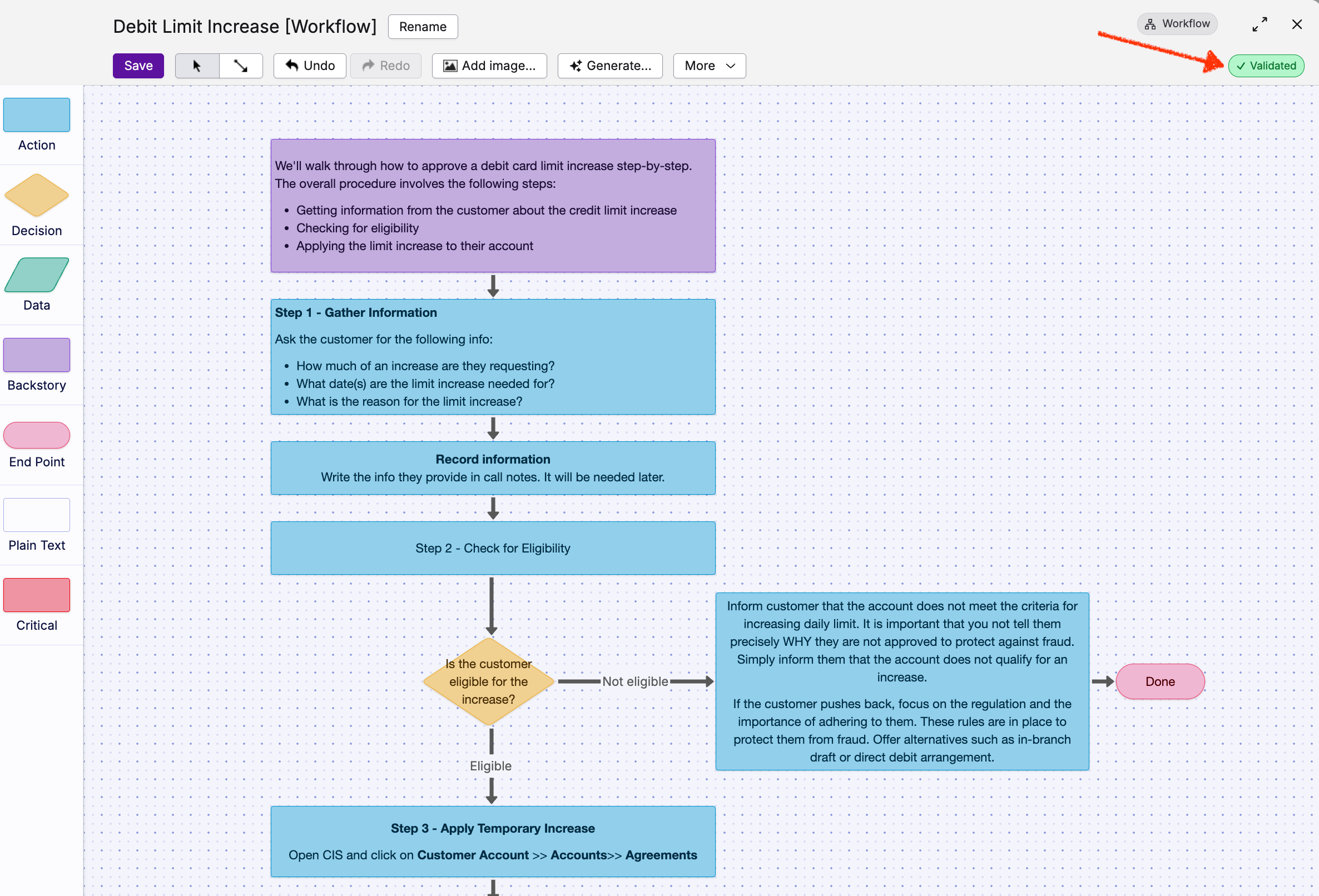
Valid Flow indicator
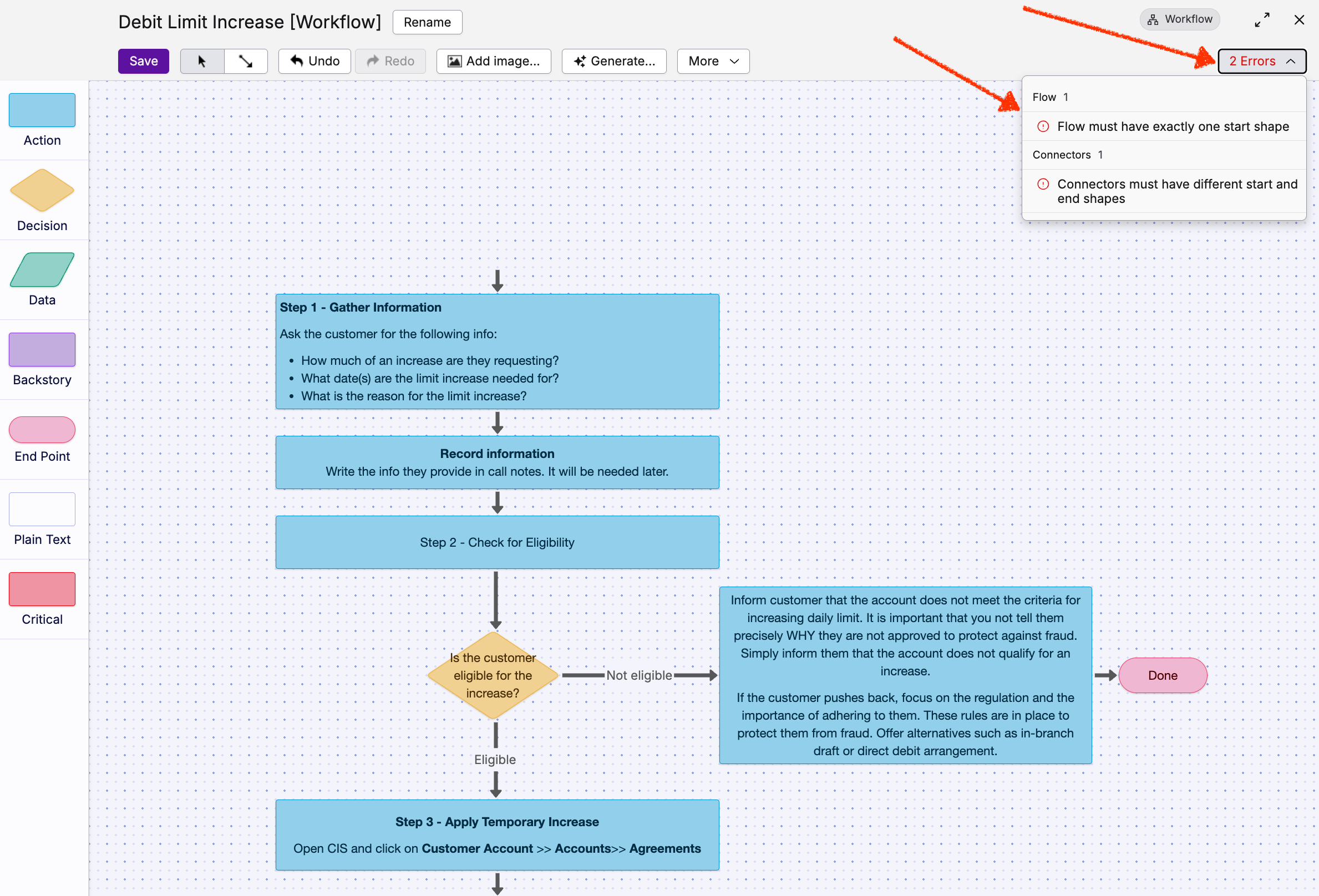
Invalid Flow indicator
- Resolve all validation errors before submitting the workflow for approval.
- Once the workflow passes validation, you can submit it for approval.
A new workflow cannot be submitted for approval until all validation errors have been resolved.
To create a flow within a workflow using AI Process Designer
- Open a Workflow entry point.
- Create a new flow using AI Process Designer.
- The generated flow is automatically created to comply with Procedureflow's workflow validation rules.
Editing flows within a workflow
As procedures evolve, you can update flows within a workflow just as you would any other flow. During editing, Procedureflow automatically validates your changes against the workflow validation rules.
If a change introduces a validation issue, a list of errors is displayed, and the flow cannot be saved until all issues have been resolved.
To save your changes:
- Edit the flow as needed.
- Review any validation errors that are displayed.
- Resolve all errors.
- Click Save.
If your updates cause a flow to be invalidated, you must resolve all validation errors before you can save the flow.