
Embedding an Entry Point in Another System
This function can be performed by Org Admins or Entry Point Admins only.
You can embed a Procedureflow entry point directly into another application that your team uses every day, such as a CRM, contact center platform, intranet, or internal portal. This allows users to access Procedureflow guidance without leaving the system they are working in.
For example, a contact center team may embed a Procedureflow entry point inside their agent desktop application so that agents can view workflows and guidance alongside customer interactions, reducing the need to switch between browser tabs or applications.

Limitations
The following features are not available when viewing an entry point through an embedded experience:
- Starred flows
- Search across entry points
- Jump to flow search
- List of all entry points a user is a member of
- Personal settings, including:
- Changing password
- Changing email address
- Theme appearance
- Profile settings
- Live/Draft contributor view
- Administration view
- Approvals view
- Reporting view
Before you begin: URL or Snippet?
Before creating an embed, determine what type of embeddable content your external system supports:
- Use Copy URL when the external system asks for a web address or link to display content. The system manages the embedded experience and only requires the entry point URL.
- Use Copy Snippet when the external system requires an HTML embed code or an iframe snippet. Procedureflow generates a ready-to-use code snippet that can be pasted directly into systems that support custom HTML embeds.
If you are unsure which option to use, consult the documentation for the external system where the entry point will be embedded.
Creating an entry point embed link
- Click Administration and select Entry Points.
- Select the entry point you want to embed.
-
Click Embeds, then select New Embed.
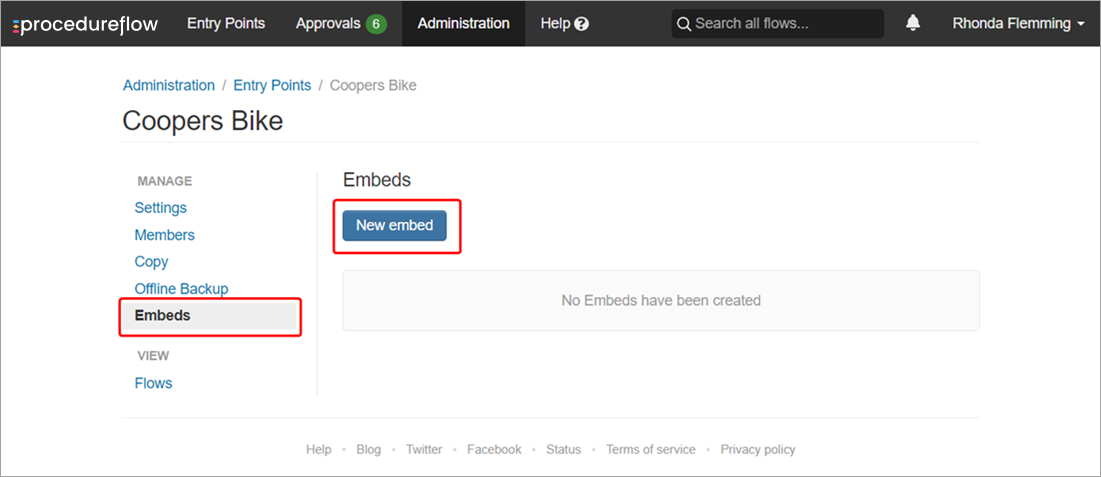
- Enter a name for the embed and click Create Embed.
- Choose one of the following:
- Click Copy URL if the destination system requires a URL.
-
Click Copy Snippet if the destination system requires an embed code or an iframe snippet.
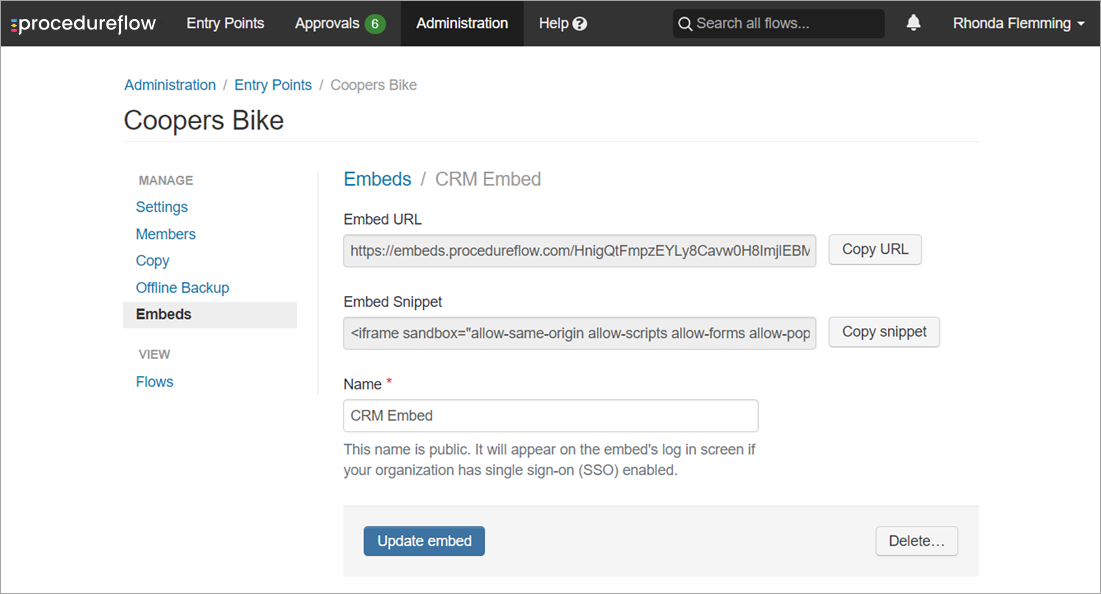
- Open the destination system and follow its instructions for adding embedded content.
- Verify that the entry point loads correctly and that users can sign in and access content as expected.
Accédez à cet article en français