
Formatting Text
Formatting text is simple and flexible in Procedureflow. You can choose between two editor experiences depending on your needs:
| Rich Text | Uses a familiar, intuitive formatting toolbar. |
|
| Plain Text | Uses a "markup language", called Markdown, that allows you to format text using symbols that are translated in the output. |
|
You can toggle between rich text and plain text while editing. The editor will remember your last choice the next time you edit text.
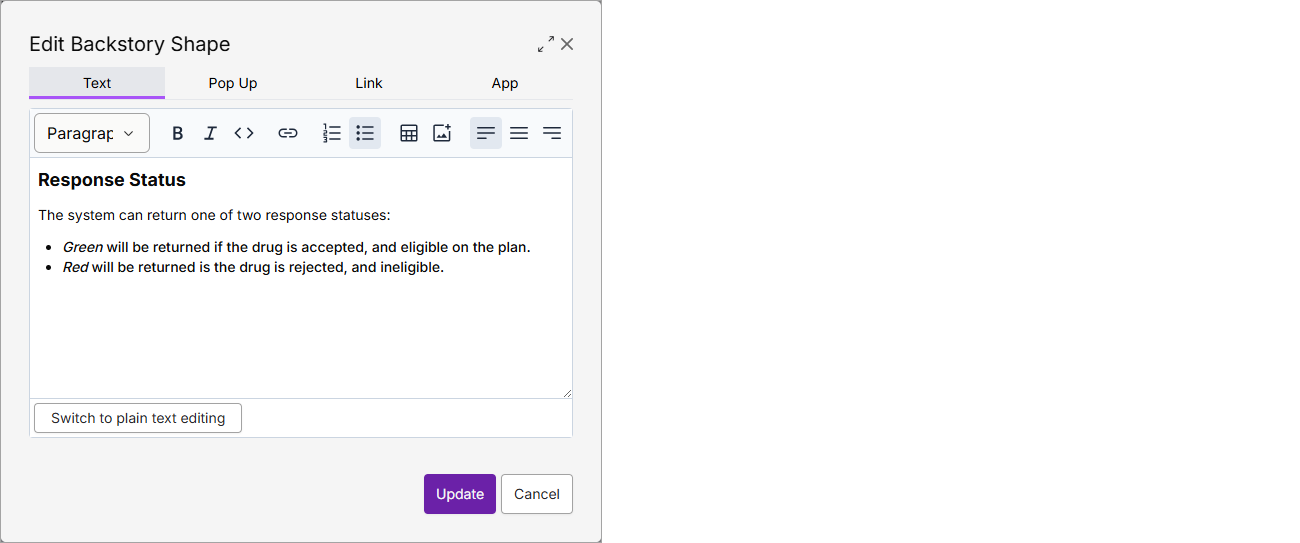
Rich Text
Paste in content that is already formatted, e.g. from Word or Google Docs, or enter new text and use the buttons on the toolbar to apply formatting. Learn more
Plain Text (Markdown)
Use symbols as you are typing to control formatting.
Italics and bold
Input:
Italicize *like this* or _like this_
Bold **like this** or __like this__
Combined ***italics and bold*** or ___italics and bold___
Output:
Italicize like this or like this
Bold like this or like this
Combined italics and bold or italics and bold
Links
If you add a link to a webpage, it should just work:
Input:
Go here: http://www.google.com
Output:
Go here: http://www.google.com
Add text to describe your link:
Input:
Here's a link to [Google Search](http://www.google.com)
Output:
Here's a link to Google Search
Or add a link to a Flow:
Input:
Go to [Start Point][flow:1]
Output:
Go to Start Point
Lists
A bulleted list can use asterisks, plus signs or minus signs:
Input:
* Apples
+ Bananas
- Oranges
Output:
- Apples
- Bananas
- Oranges
A numbered list just works:
Input:
1. First item
2. Middle item
3. Last item
Output:
- First item
- Middle item
- Last item
Pre-formatted text
If you want text with a mono-spaced font, indent with four spaces:
Input:
    Every character in pre-formatted text
    has the exact same width!
Output:
Every character in pre-formatted text
has the exact same width!
Alternatively, you can use the backtick character (` ) inline:
Input:
To capture a screenshot, press the `Print Screen` key.
Output:
To capture a screenshot, press the Print Screen key.
Quotes
Input:
> Create quotes by putting ">" on each line.
> You can also include formatting:
>
> 1. Apples
> 2. Bananas
> 3. Oranges
Output:
Create quotes by putting ">" on each line.
You can also include formatting:
- Apples
- Bananas
- Oranges
Tables
Tables aren't officially part of Markdown, but we've added them because of their convenience:
Input:
Name   | Price
-------|--------
Apple  | $0.50
Banana | $0.30
Orange | $0.80
Output:
| Name | Price |
| Apple | $0.50 |
| Banana | $0.30 |
| Orange | $0.80 |
Alternatively:
- Click Formatting help? and scroll down to the Tables section.
- Select and copy the example table (this will copy the Markdown formatting required to create the table).
- Return to Procedureflow and paste the table into the Add Backstory Shape dialogue box.
- Change the headings and values in the table as needed.
Word spacing
Use (non-breaking space) to control spacing before or between words:
-
Add spacing to control visual alignment:
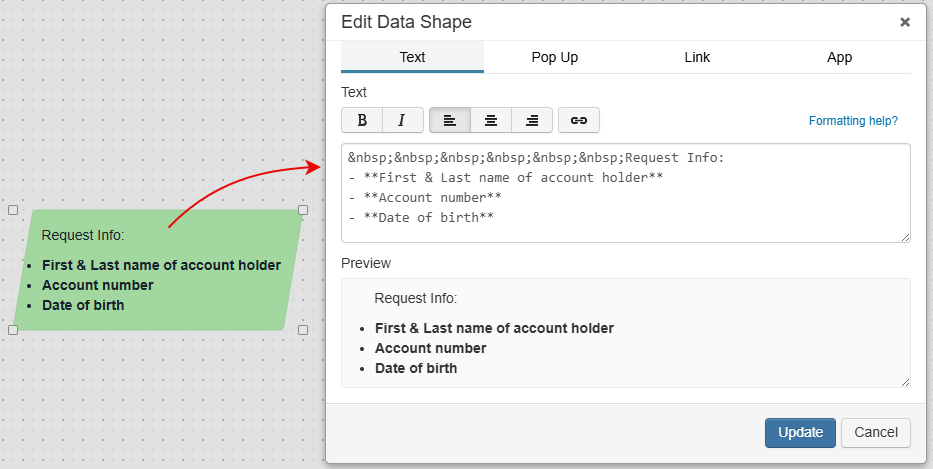
- Add extra spaces between elements:
Element1 Element2
- Keep two words or elements together, even if the first one is at the end of a line:
Word1 Word2
More details
Check out the official Markdown guide for even more advanced usage of Markdown.
Accédez à cet article en français